Where things live
Activating the plugin adds a Tangible LMS item to the WP Admin menu.
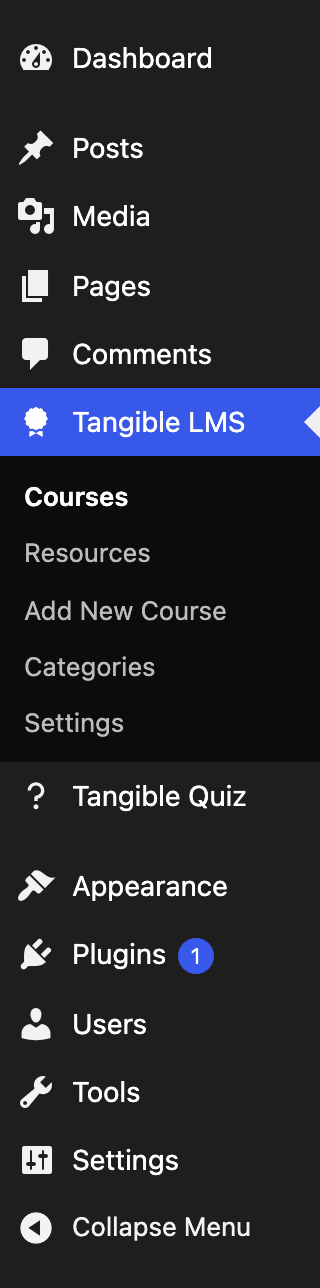
| Menu item | What it is |
|---|---|
| Courses | The list of courses. Courses are a custom post type, so this behaves like the Posts list, supporting search, filters, bulk actions, quick edit. |
| Resources | The library of step content (rich text, video, and post resources) independent of the courses that use them. |
| Add New Course | Creates a course and drops you into the editor. |
| Categories | The course taxonomy, used for grouping and for visibility rules. |
| Settings | A link through to the site-wide settings page under core Settings. |
Settings types
There are two separate settings surfaces which control different scopes:
Site settings: options for the whole site. Found at Settings → Tangible LMS, or via the Settings link in the Tangible LMS menu. These decide which features exist at all: whether mentors are enabled, which post types and video sources can be used as step resources, where courses sit on the front end, how the course viewer is laid out, and which notification emails go out.
Course settings: the Settings tab inside a single course's editor. These apply to that course alone: its access mode, enrollment rules, prerequisites, progression mode, and per-step options. See the course settings reference.
Site settings: General
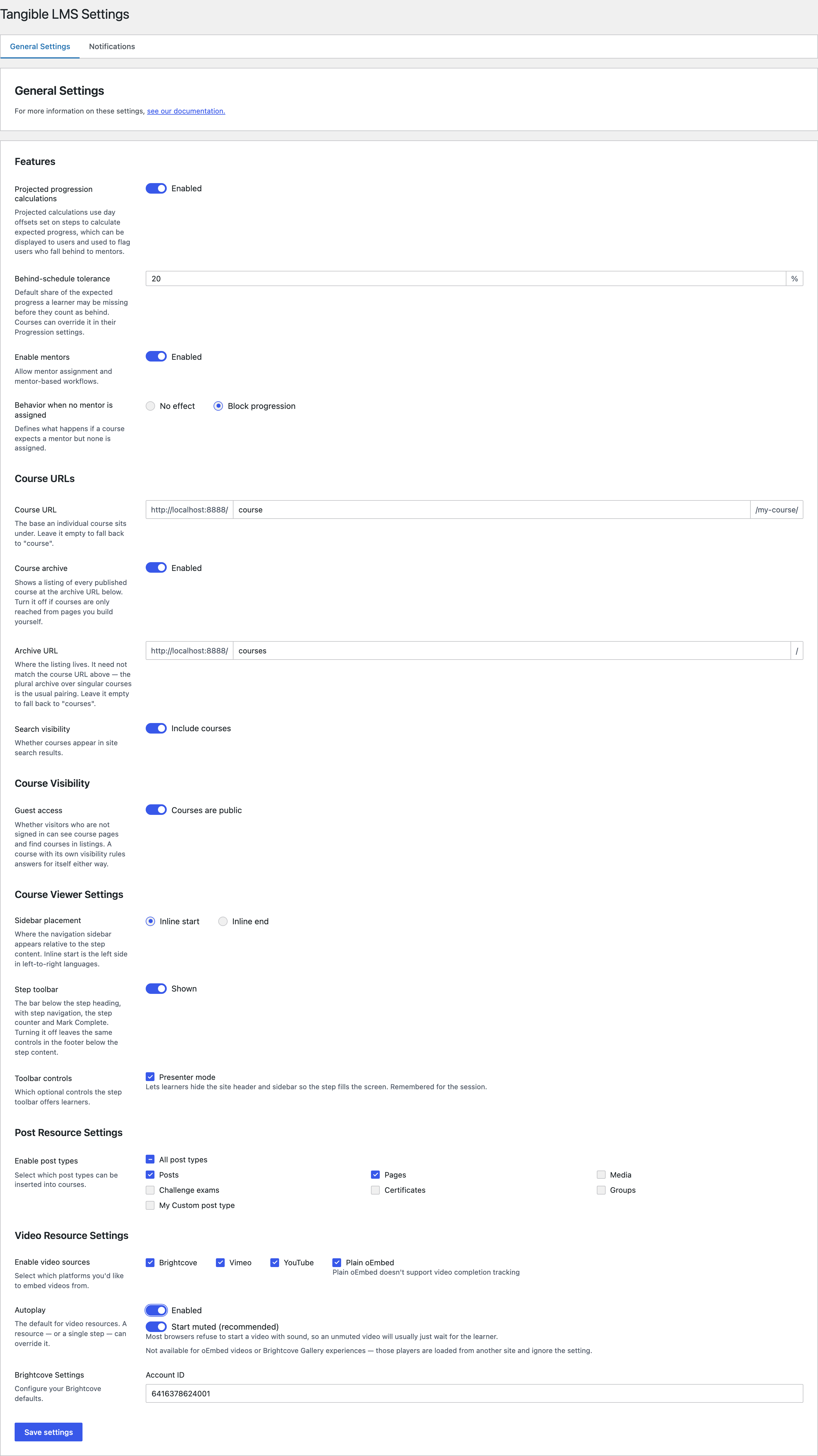
- Features: turn on projected progression calculations (which use the day offsets set on steps to work out expected progress) and mentors. Each switch reveals its dependents. Projected progression brings Behind-schedule tolerance, the default share of expected progress a learner may be missing before they count as behind. Mentors adds a choice of what happens to a learner on a course that expects a mentor but has none assigned: No effect, or Block progression.
- Course URLs: where courses sit on the front end, and who can stumble across them. Covered below.
- Course Visibility: whether guests can see course pages and find courses in listings at all. Guest access is the site default; a course with its own visibility rules answers for itself either way.
- Course Viewer Settings: where the navigation sidebar sits relative to step content (Inline start or Inline end), and whether learners get the Step toolbar, the bar below the step heading with step navigation, the step counter, and Mark Complete. Turning it off leaves the same controls in the footer. While the toolbar is on, Toolbar controls decides what it carries. Presenter mode is the first: it lets learners hide the site header and sidebar so the step fills the screen. A learner who had it on when it is withdrawn returns to the normal layout.
- Post Resource Settings: which post types may be inserted into courses as steps. The course builder's inserter offers exactly the enabled types, and hides its WP Posts tab when none are enabled.
- Video Resource Settings: which video sources are available: Brightcove, Vimeo, YouTube, and plain oEmbed. Brightcove takes an Account ID. Autoplay sets the site default for whether videos start on their own. Its Start muted companion defaults on, because most browsers refuse to start a video with sound. A resource, or a single step, can override either way.
Plain oEmbed embeds do not report playback progress, so a step using one cannot require video completion. Use Brightcove, Vimeo, or YouTube if completion needs to be tracked.
Course URLs
Courses are a post type, so each course has a permalink. Two settings decide what those permalinks look like.
Course URL is the base a single course sits under. It defaults to course, giving /course/my-course/.
Archive URL is where the listing of every published course lives. It defaults to courses. Set the two to the same word if you would rather they matched.
Course archive switches that listing on and off. With it off, the archive URL stops resolving and the Archive URL field disappears. Individual courses are unaffected; you reach them from pages you build yourself.
Search visibility decides whether courses appear in site search results. Turning it off removes them from search alone, it is not an access control. Course visibility rules are the tool for that.
Changing either base rewrites every course permalink. Tangible LMS notices on the next request and rebuilds the rewrite rules, so there is no need to visit Settings → Permalinks afterwards.
Old links fare less well. WordPress will usually redirect a single course requested at its former address, because it can still find the course by its slug, but the archive gets no such help: a bookmark or inbound link pointing at the old archive URL simply stops working. Treat a change on a live site as you would any other permalink change.
Site settings: Notifications
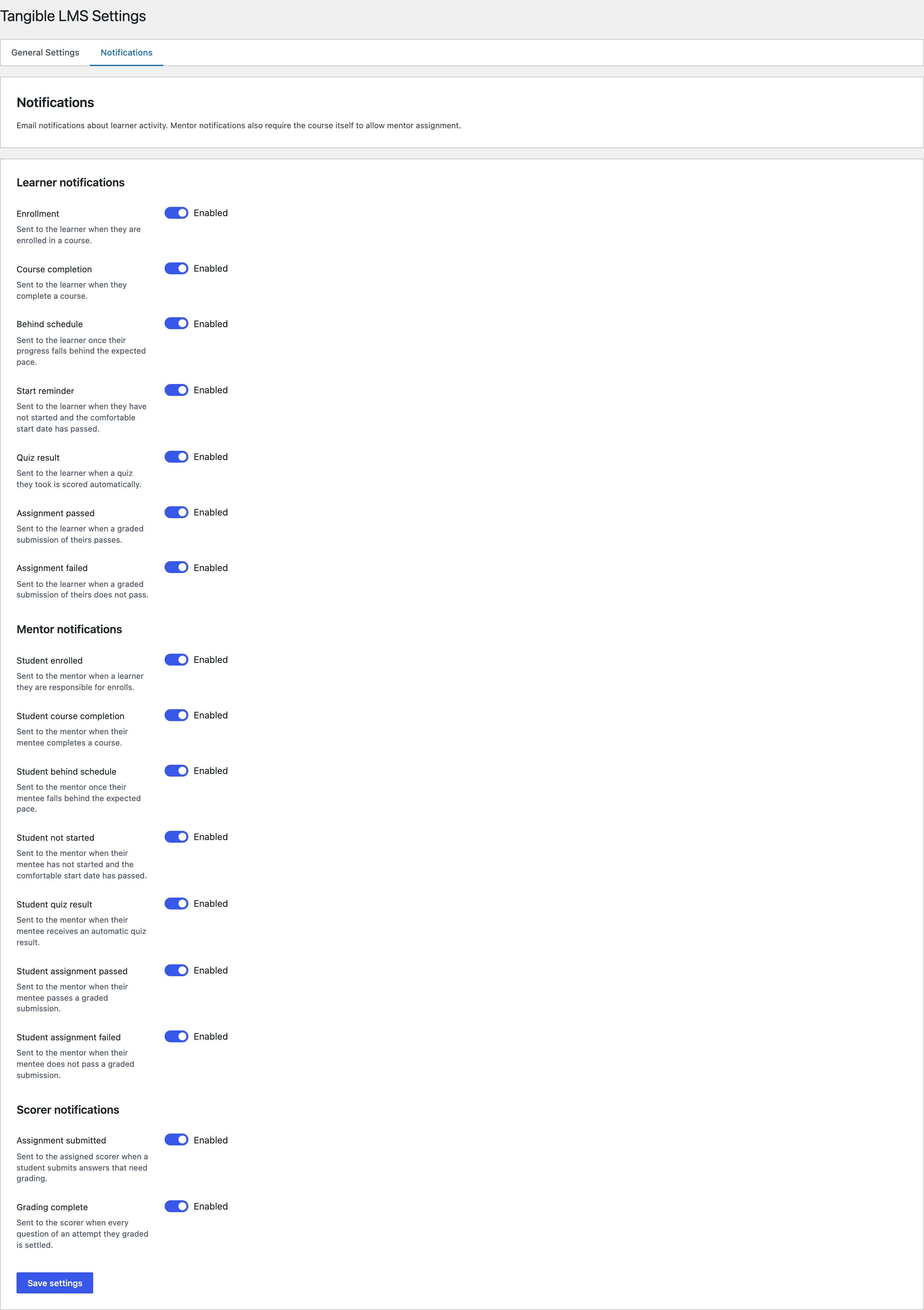
Email notifications, split into three audiences, each independently switchable:
| Learner notifications | Sent when |
|---|---|
| Enrollment | They are enrolled in a course. |
| Course completion | They complete a course. |
| Behind schedule | Their progress falls behind the expected pace. |
| Start reminder | They have not started and the comfortable start date has passed. |
| Quiz result | A quiz they took is scored automatically. |
| Assignment passed | A graded submission of theirs passes. |
| Assignment failed | A graded submission of theirs does not pass. |
| Mentor notifications | Sent when |
|---|---|
| Student enrolled | A learner they are responsible for enrolls. |
| Student course completion | Their mentee completes a course. |
| Student behind schedule | Their mentee falls behind the expected pace. |
| Student not started | Their mentee has not started and the comfortable start date has passed. |
| Student quiz result | Their mentee receives an automatic quiz result. |
| Student assignment passed | Their mentee passes a graded submission. |
| Student assignment failed | Their mentee does not pass a graded submission. |
| Scorer notifications | Sent when |
|---|---|
| Assignment submitted | A student submits answers that need grading, sent to the assigned scorer. |
| Grading complete | Every question of an attempt they graded is settled. |
The tab lists what can currently fire. The mentor group appears only while mentors are enabled in Features, and the two behind-schedule rows only while projected progression is on. A notification whose feature is off does not send, however its switch is set, and every hidden switch keeps its stored value until its feature returns. The quiz and assignment rows require Tangible Quiz.
Behind-schedule tolerance, the share of expected progress a learner may be missing before the behind-schedule mail fires, lives on the General tab beside the projected-progression switch. An individual course can override it in its Progression settings.
Projected progression starts off on a site that has never saved the settings page, so behind-schedule notifications (and projected progress itself) are silent until it is switched on under Features.
A mentor notification only sends if mentors are enabled in Features and the course itself allows mentor assignment. Switching the notification on by itself is not enough.