Course settings
The Settings tab in the course editor holds everything that governs how a single course behaves: who can see it, who can enroll, in what order learners move through it, and what happens when they finish. These are per-course. For options that apply to the whole site, see where things live.
Before you start
Settings belong to a version. The header shows which version you are editing and carries a Switch to Draft control. Settings edited against the published version are live once pushed; settings edited on a draft travel with that draft until it is published.
Nothing saves until you push. Changes are held locally until you click Push Settings Live at the foot of the panel. Navigating away without pushing discards them.
The Quick Navigation sidebar lists every section and has a search box.
Access

Access Mode decides how a learner gets onto the course.
| Mode | Behaviour |
|---|---|
| Free | Anyone who can see the course can self-enroll with a single click. |
| Closed | Enrollment requires an enrollment trigger to match, or an administrator to grant it. |
Access Mode governs enrollment, not visibility. A Closed course can still be listed publicly. Whether it appears at all is decided by Visibility.
What a visitor without access sees
A visitor who can see the course but is not enrolled lands on its entry page: the course's own description and outline, with a call to action matched to who they are.
| Visitor | Offered |
|---|---|
| Guest | Log In to Enroll, returning here after login. |
| Signed in, no access, Free course | Enroll Now, which enrolls them in one click. |
| Signed in, no access, Closed course | A sentence explaining that access is missing. |
| Enrolled | Start Course, Resume Course, or Review Course. |
Self-enrollment on a Free course is recorded like any other enrollment, attributed to the learner.
WordPress password protection is honoured. A course with a post password shows core's password form to everyone without the cookie, enrollees and administrators included. Entering the password once opens the course for the session.
Enrollment
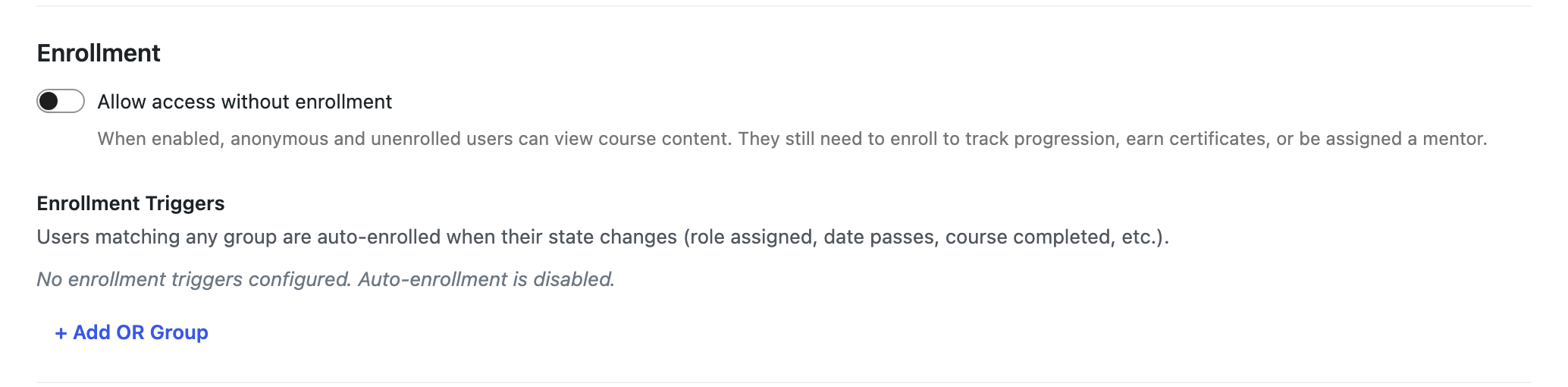
Allow access without enrollment, when enabled, lets anonymous and unenrolled users read the course content. They still have to enroll to have progression tracked, to earn a certificate, or to be assigned a mentor. It's appropriate for reference material that you would rather not gate.
An open course is browsed without progression: no Mark Complete, no progress bar, no gating. Each step ends with a notice naming what enrolling adds, with the same call to action the entry page offers. The per-step Sample flag is the same idea scoped to one step. See the Steps table.
Enrollment Triggers auto-enroll users whose state changes to match a rule: a role is assigned, a date passes, another course is completed. Rules are built as condition groups. With no triggers configured, auto-enrollment is simply off, and the panel says so.
Visibility

Visibility rules decide who can discover the course, again using condition groups. With no rules, the course follows the site's Guest access default under site settings: visible to everyone, or to signed-in users only.
The rules govern the archive, site search, the public course listing, and the sitemap, as well as the course page itself. A guest the rules exclude is sent to the login form, since signing in may change the verdict. A signed-in visitor gets a 404 rather than a refusal, because a course you may not see should not confirm that it exists.
Someone already enrolled always sees the course, whatever the visibility rules say. Tightening visibility therefore affects discovery by new learners; it never strands people mid-course.
Listings and search check the conditions that need no per-course lookups: login state, user role, dates, and everyone. A rule that relies on Course is completed, or on a third-party condition, leaves the course listed for everyone, while the course page itself still refuses whoever the rules exclude. Prefer role- and login-based rules where hiding from listings matters.
Visibility rules decide who, among the people browsing, sees this course. Whether courses are listed or searchable at all is a site-wide decision, made by the Course archive and Search visibility settings under site settings. If the archive is switched off or courses are excluded from search, no visibility rule will make this course visible in those areas.
Prerequisites

Prerequisites are conditions a user must satisfy before they may enroll. They are evaluated as condition groups, and the user needs to satisfy at least one group.
An administrator enrolling someone by hand from the enrollments screen is not stopped by these rules. Prerequisites impact self-enrollment and trigger-driven enrollment, but don't apply to administrative action.
Note the difference from progression: prerequisites here gate entry to the course. Gating one step behind another is Progression plus per-step prerequisites.
Progression
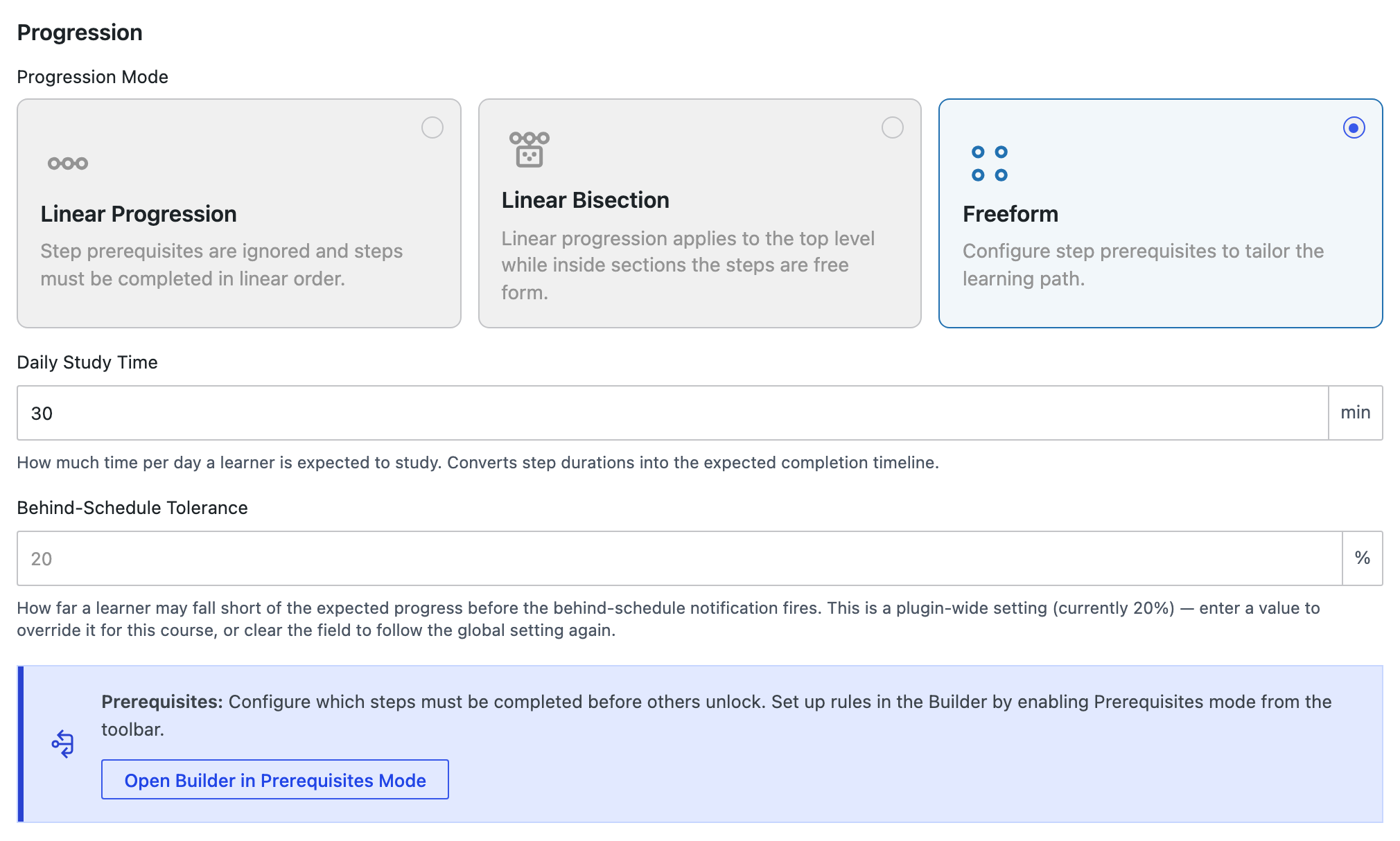
Progression Mode picks one of three shapes:
| Mode | Behaviour |
|---|---|
| Linear Progression | Step prerequisites are ignored and steps must be completed in linear order. |
| Linear Bisection | Linear progression applies at the top level; inside a section, steps are free form. |
| Freeform | No implicit ordering; students can interact with and complete steps in any order. |
Daily Study Time is how much time per day a learner is expected to study. It converts the durations set on steps into an expected completion timeline, which is what behind-schedule notifications and projected progress refer to.
Behind-Schedule Tolerance is how far short of expected progress a learner may fall before the behind-schedule notification fires. The field shows the site-wide default as placeholder text; type a value to override it for this course, or clear the field to follow the global setting again.
The expected timeline is derived from per-step durations. If steps carry no duration, there is nothing to divide by the daily study time, and neither projected progress nor the behind-schedule notification will have anything to work from.
Daily Study Time and Behind-Schedule Tolerance shape the expected timeline, so they appear only while projected progression calculations are enabled in site settings. Values already set are kept, not cleared, and return with the feature. Step durations stay editable regardless: a duration describes the content, not the timeline.
Steps
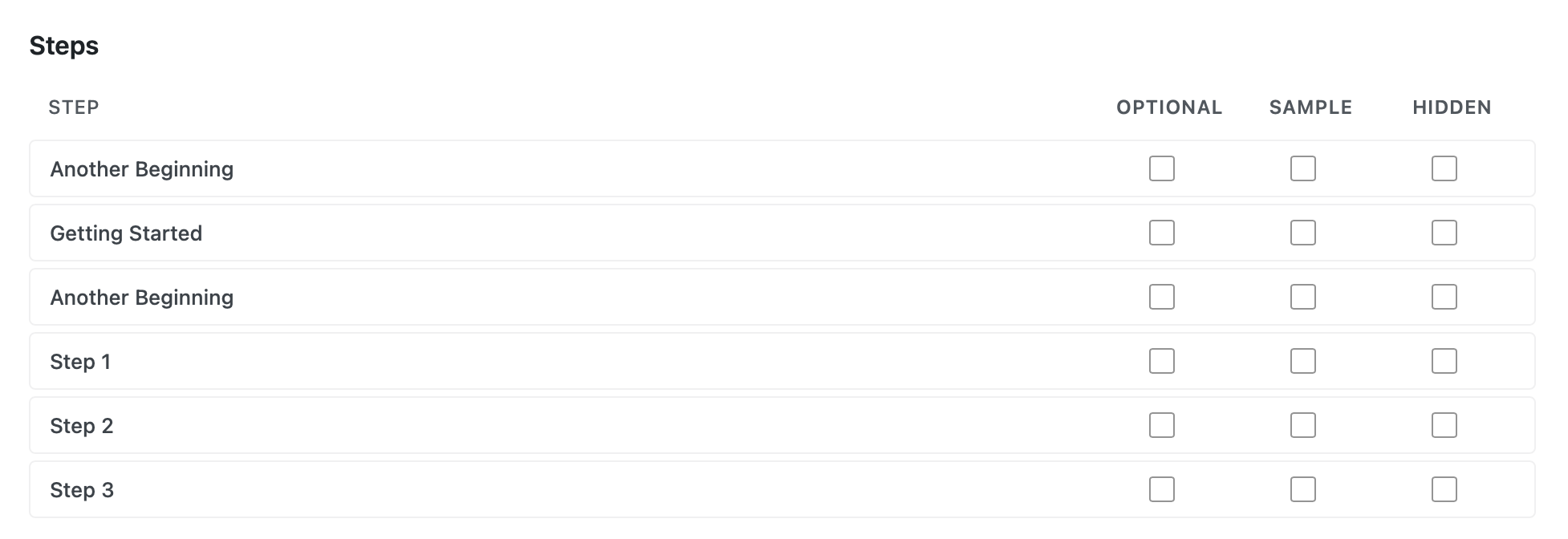
Every step in the outline is listed with three checkboxes:
| Checkbox | Effect |
|---|---|
| Optional | The step is not required for course completion. Learners can finish the course without it. |
| Sample | The step is a free preview, so unenrolled users can view it even when the course is Closed. |
| Hidden | The step is kept in the structure but hidden from the outline and the learner's navigation. |
This table is a convenient overview; the same flags are available on each step individually in the Builder's inspector.
In outlines shown to unenrolled visitors, a sample step is a real link with a Sample badge, while gated steps are inert rows that give their reason: Enroll to open this step. The reason reaches keyboard and screen-reader users as well as the hover tooltip.
Mentor Settings

Allow mentor assignment enables per-enrollment mentor assignment for this course. With it off, no mentor can be attached to an enrollment here, regardless of site settings.
Mentors must be enabled site-wide, under Settings → Tangible LMS → General Settings. This whole section only appears in the course editor while they are. That is also where you choose what happens to a learner on a mentor-expecting course who has no mentor yet: No effect, or Block progression. That choice is site-wide, not per course.
Certificate

Certificate Template connects the course to a certificate provider so completion issues a certificate automatically.
Certificates are supplied by a separate integration. Until a provider plugin is registered, this selector reports that there are no available certificate integrations, and the setting has nothing to do.