Saving and publishing
Draft auto-save
As you make changes to your course outline, your changes are automatically saved to a draft. If ever you've made changes that you wouldn't like to publish, your draft can be discarded using the button displayed when clicking on the draft status indicator in the toolbar.
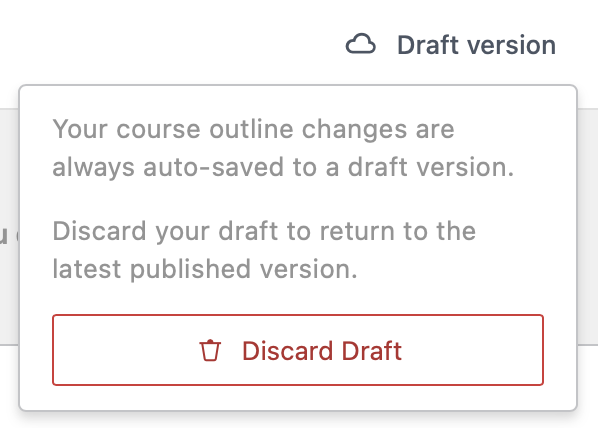
The draft status indicator will automatically update to let you know that it's saved your changes  or if there's an error during saving
 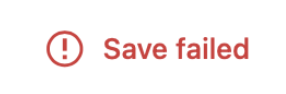 , in which case you'll be offered a Retry action at the top of the builder.
Modifying step content
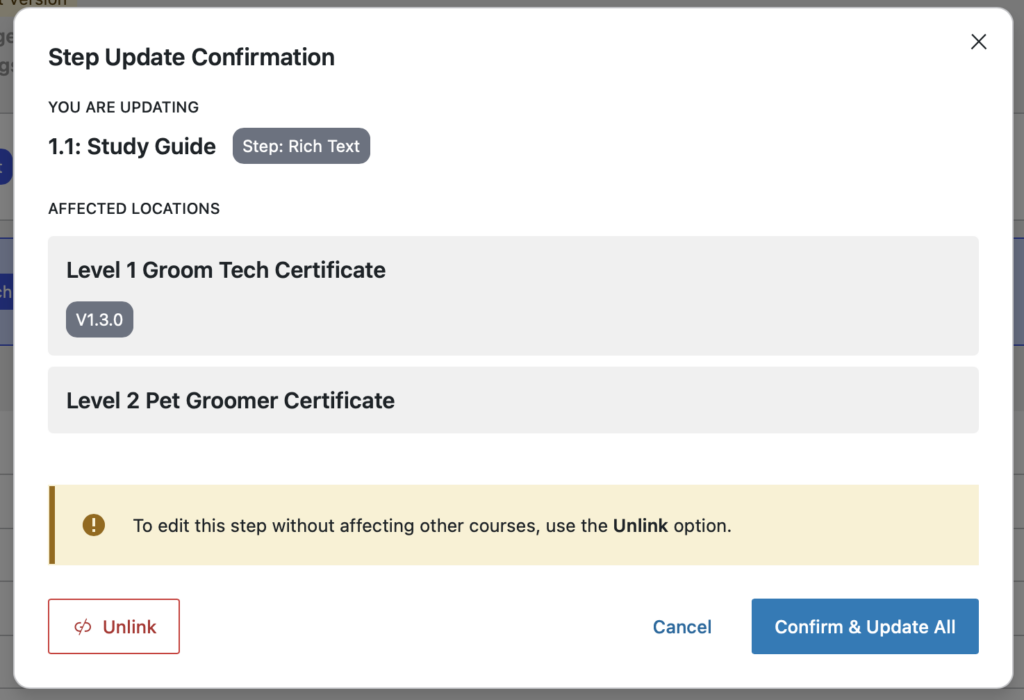
Modifications to steps will always impact every version of the course, and will be visible to students as soon as you save them. Because of this, you'll receive an impact summary before changes are applied to steps, letting you know which versions, branches, and courses contain the step and will be impacted by your modification.
If you'd like to edit the step independently without impacting the other areas that use it, the unlink button allows you to proceed with a cloned step instead, while preserving any changes you've made.
Publishing a version
When you're ready for your changes to be shown to users, publish your draft course outline using the  button in the toolbar. A panel will open at the right side of the screen offering pre-publish options.
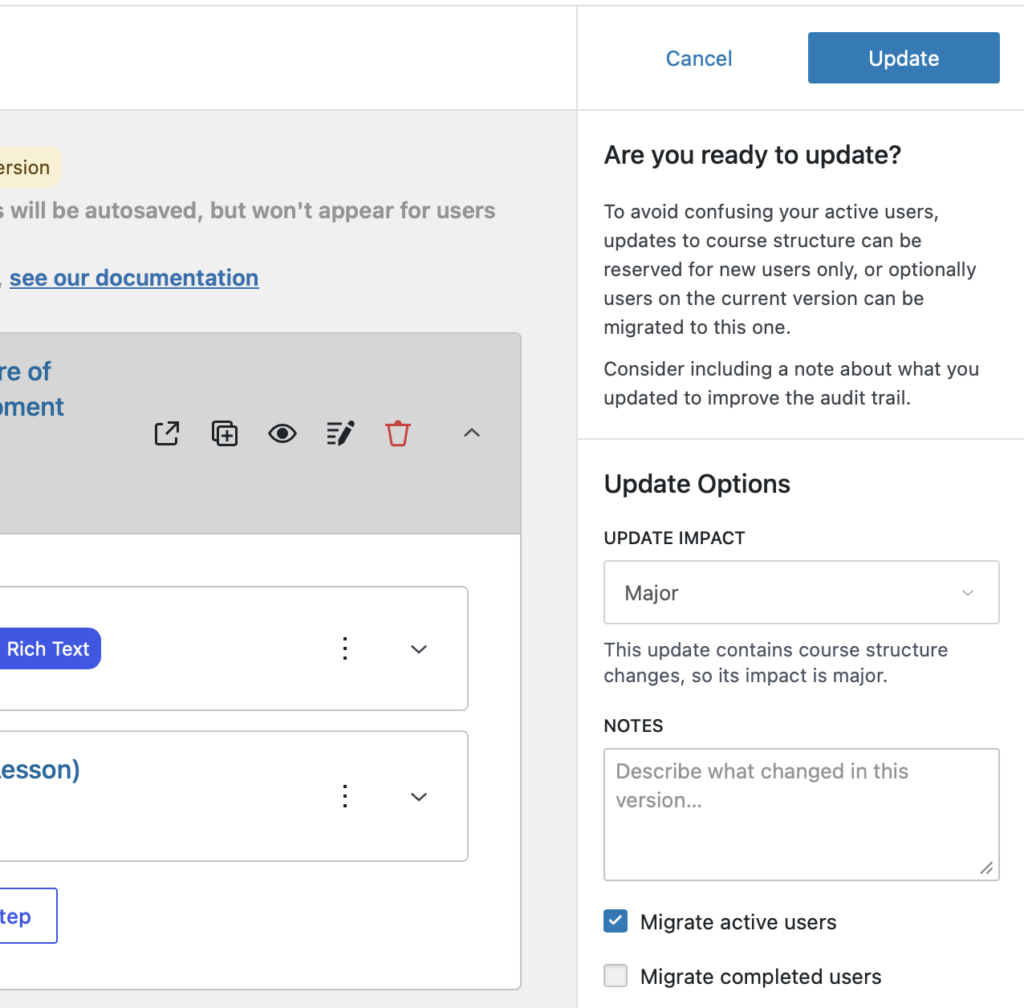
If your draft does not contain changes to the mandatory structure of the course (steps which are required for completion), then you'll have the option to update it as a minor version. Learners on the current version move to a new minor version automatically, whereas migration to a new major version is triggered per enrollment.
When a learner is migrated to a new version, any genuinely new required step inserted behind their furthest completed point is credited automatically. It counts toward their percentage and satisfies progression gates, and the outline marks it with a dotted "completed, not encountered" icon rather than a solid tick. A step that merely moved keeps whatever state the learner had.
The optional notes field allows you to describe what's changed to leave a better audit trail. When you're satisfied with your changes, click the Update button and your modifications will be assigned a version number and published.