Getting started
To get started, navigate to Tangible LMS → Courses in your WordPress admin menu.
"Courses" is a custom post type that serves as the presentational container for Tangible LMS learning content, so it benefits from support for custom fields, featured images, taxonomies, the block editor, and all of the other lovely things that WordPress offers for posts.
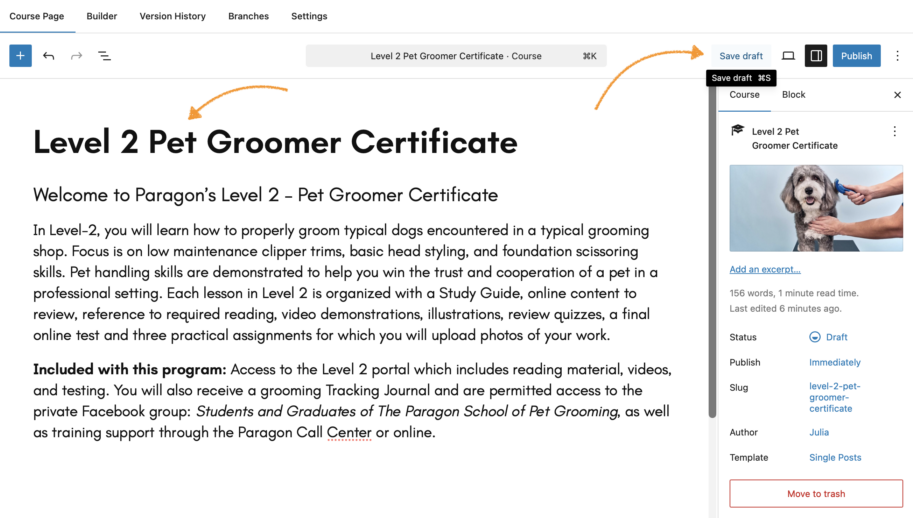
Next, edit an existing course or add a fresh one. When you add a fresh course, you'll need to give it a title and publish it or save it as a draft before you can start building your course outline.
Inserting content
Use the tabs at the top of the editor to navigate to the Builder interface. From here, you have two options for inserting content:
- Use the inserter button
 to insert existing steps
 - Add new steps, multi-step pages, and sections using the provided inline buttons
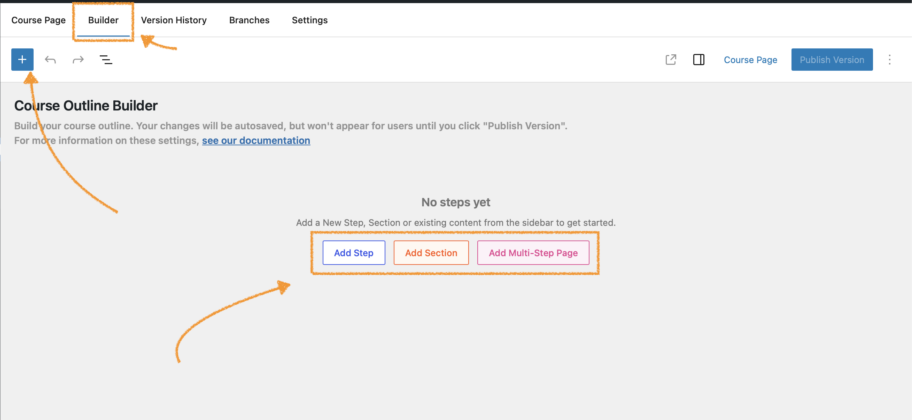
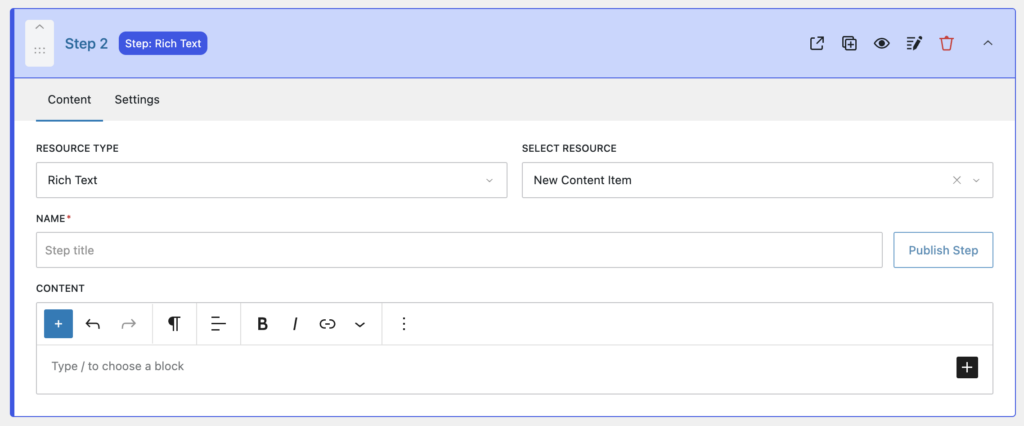
Your inserted item will appear at the bottom of the editor. If it's a new step, it must be named and published using the Publish Step action before it will be stored.
Resource types
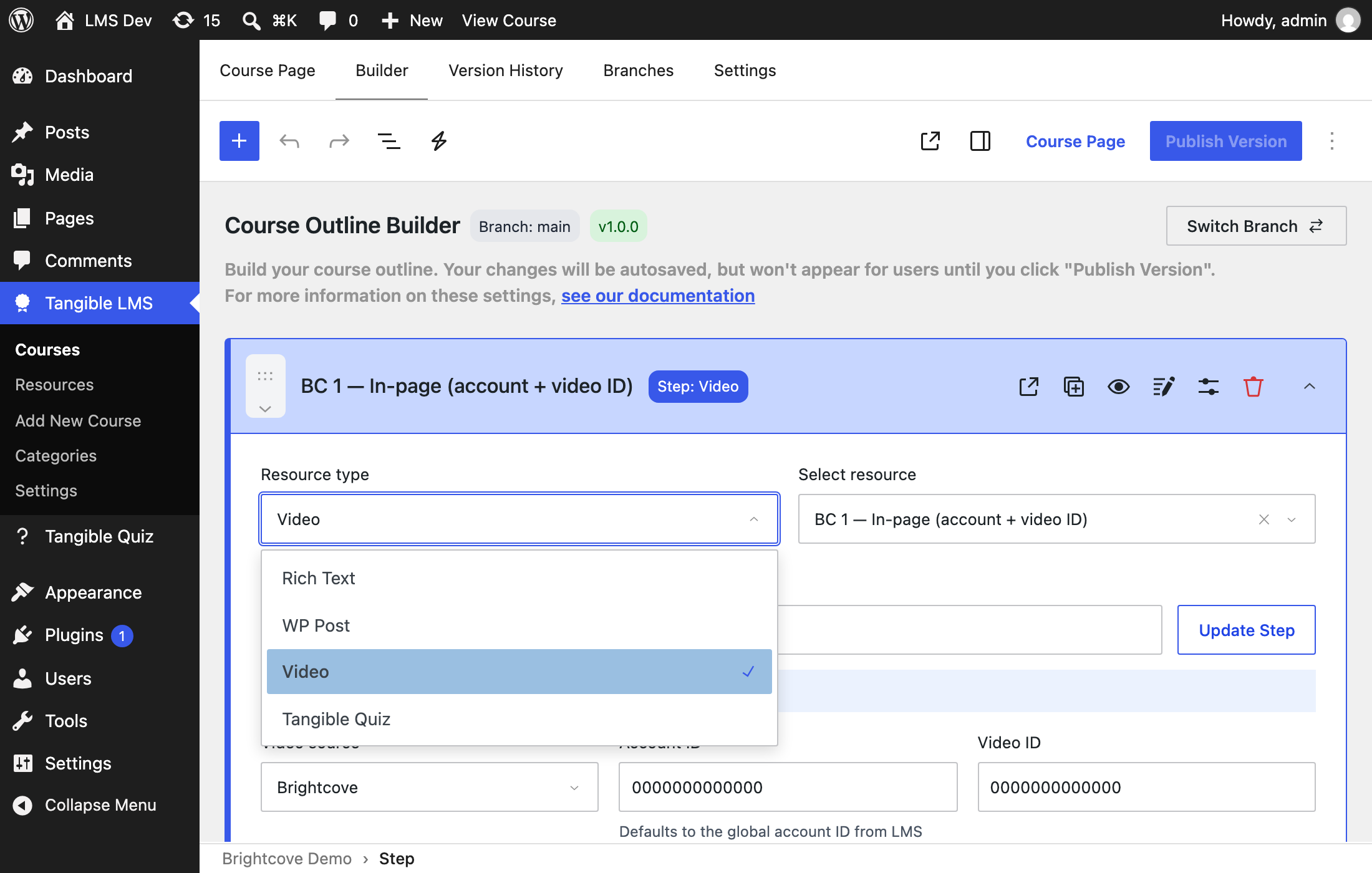
A step's resource type can be modified using the Resource Type selector.
- Rich Text provides a content area
- WP Post allows selection of an existing WordPress post
- Video provides controls for video embedding
- Tangible Quiz selects an existing published quiz (see adding a quiz to a course)
Step actions
Each step offers actions in its panel header:
- Preview: will be wired up at time of course viewer deliverable
- Duplicate: creates another instance of the step, section, or page
- Toggle Visibility: sets visibility true/false to show or hide steps, sections, and pages
- Edit in New Tab: opens the standalone editor for the step's resource in a new tab, so unsaved outline changes survive
- Edit Settings: opens the item's settings in the inspector sidebar. See step and section settings
- Remove: removes the step without deleting it from the database
- Expand: expands the accordion panel containing the step settings and content, or the section or page children
